Welcome to College of Education Communications.
Several downloads including templates and graphics are available for usage. Additionally, essential resources are offered including instructions for opening a ticket, service checklists to identify what information you’ll need when opening a ticket, and service timelines for determining if the project can be completed by your need by date. A logo use guide for collateral development is also available under the resources tab. For other inquiries, please email comms@education.fau.edu.
Downloads
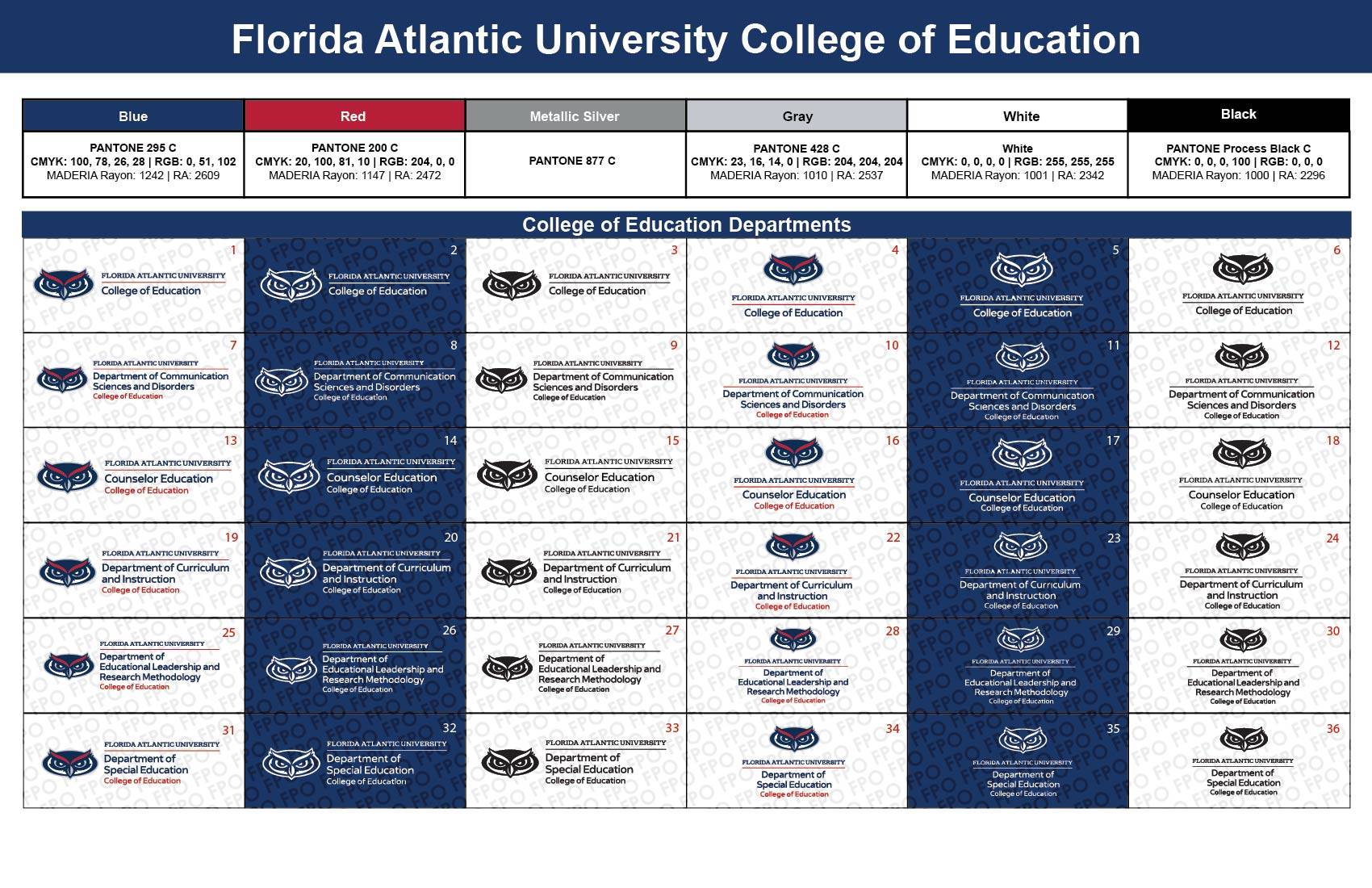
Art Sheet for College of Education
Certificate Template
- Certificate - Max 6 (pptx)
- Certificate - Max 7 (pdf)
- Certificate - Max 7 (pptx)
- Certificate - Max 7 with signature line (pdf)
Flyer Templates
- Flyer Template v1 (pptx)
- Flyer Template v1 (pdf)
- Flyer Template v1 (docx)
- Flyer Template v2 (pptx)
- Flyer Template v2 (pdf)
- Flyer Template v2 (docx)
- Open House Template (pptx)
- Open House Template (pdf)
- Open House Template (docx)
Meeting Agenda Template
- Meeting Agenda (pptx)
- Meeting Agenda (docx)
PowerPoint Template Presentations
Conference Poster Templates
- One Institution [Blue]
- One Institution [Grey]
- One Institution [Red Blue]
- One Institution [Red]
- Two Institutions [Blue]
- Two Institutions [Grey]
- Two Institutions [Red Blue]
- Two Institutions [Red]
Virtual Backgrounds



Resources
- College of Education Logo Use Guide
- Service Timelines
- Education Communications Service Checklists
- How to open a ticket for communications services in the College of Education
- College of Education Email Signature Generator
College of Education Email Signature Generator
Set Up Your Official College of Education Email Signature
To ensure consistency and compliance with Florida Atlantic University’s branding and technology policies, all faculty and staff are asked to use the College of Education Email Signature Generator to create their official email signature. This easy-to-use tool includes a fillable template and step-by-step instructions to help you quickly configure your signature with the standard format and content. Please note that email signatures must follow the Acceptable Use of Technology Resources Policy (Article 1, Section N) , which limits content to University-related contact information and prohibits quotes, personal messages, images, or links other than personal FAU website with bio and other information.
Fill out the form and then click the "CREATE SIGNATURE" button to generate the signature. To copy it into your message, click the "COPY SIGNATURE" button. Your signature will be copied to your clipboard so you can then add it to your email's signature creation tool.
Please review the tutorial on how to create signatures in Microsoft Outlook.